> For the complete documentation index, see [llms.txt](https://read.cryptograb.wiki/cryptograb-automatic-affiliate/llms.txt). Markdown versions of documentation pages are available by appending `.md` to page URLs; this page is available as [Markdown](https://read.cryptograb.wiki/cryptograb-automatic-affiliate/cex-exchange-5-design-or-seed-or-visa-and-ms-9-merch-zh/guan-yu-wo-men/mian-fei-zhi-zuo-deepfake-tiktok.md).
# 免费制作 DeepFake TikTok
免费为引流制作深度伪造视频!
**开始**
点击 [链接](https://zelenka.guru/proxy.php?link=https%3A%2F%2Fcolab.research.google.com%2Fgithub%2Fanothermartz%2FEasy-Wav2Lip%2Fblob%2Fv8.1%2FEasy_Wav2Lip_v8.1.ipynb\&hash=b2733046ff223e41c9ae97f21890c343) 并在右上角点击“连接”。
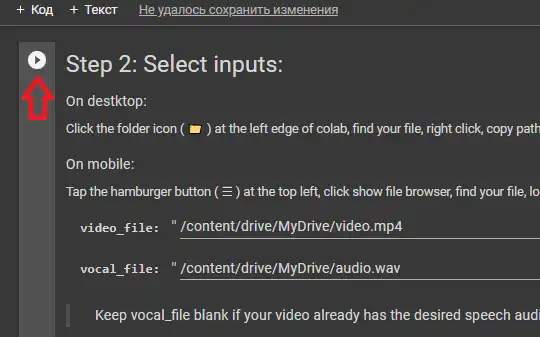
 在为你分配到显卡后,开始第一段代码单元。点击此按钮,然后按照截图操作。
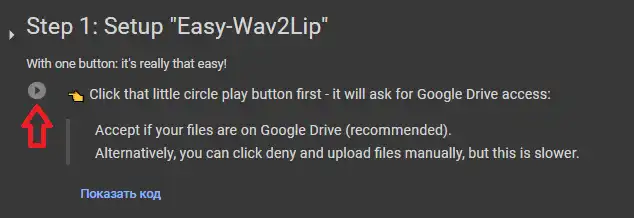
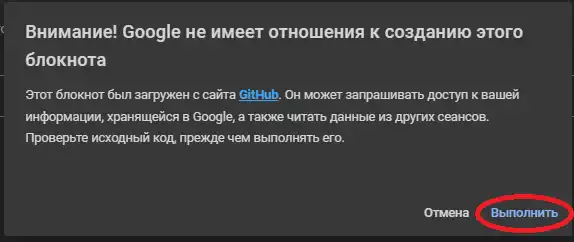
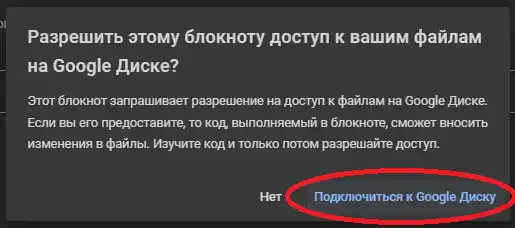
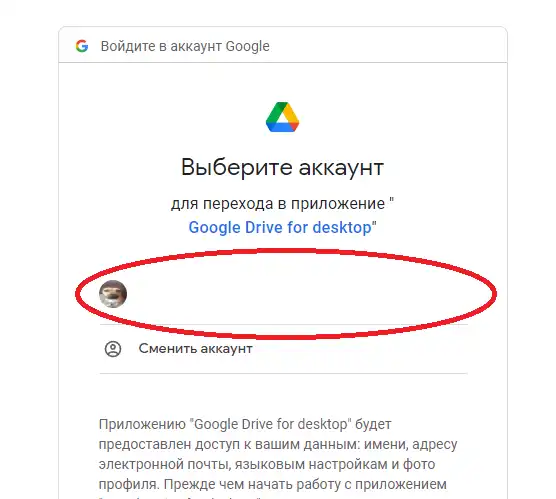
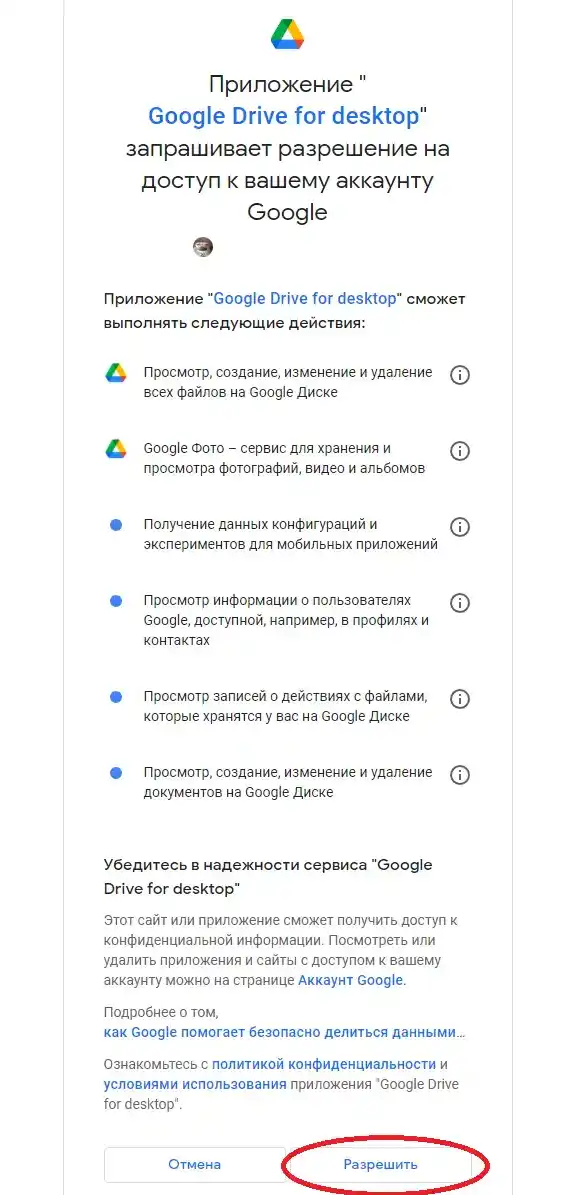 完成第2步后,开始添加素材,在我的例子中这是主播 FoxNews:
*
视频应为 .mp4 格式,音频为 .wav
一篇教你如何用所需声音生成文本转语音的文章
* [文章](https://zelenka.guru/threads/6282053/)
把你的素材上传到你在单元中挂载的 Google 云端硬盘。
完成第2步后,开始添加素材,在我的例子中这是主播 FoxNews:
*
视频应为 .mp4 格式,音频为 .wav
一篇教你如何用所需声音生成文本转语音的文章
* [文章](https://zelenka.guru/threads/6282053/)
把你的素材上传到你在单元中挂载的 Google 云端硬盘。
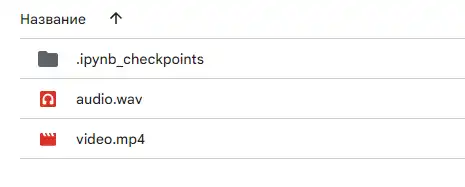 接着按照截图操作:
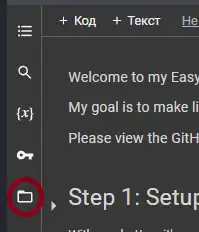
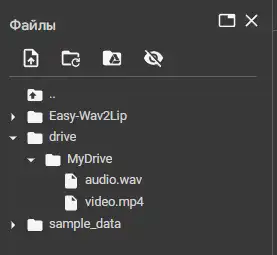 在单元中指定文件路径。
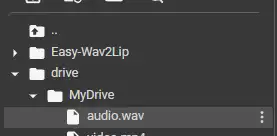
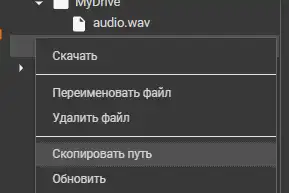
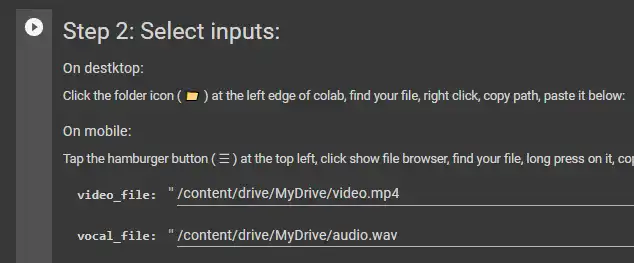 > **video - video\_file**
> **audio - vocal\_file**
选择质量:
> **video - video\_file**
> **audio - vocal\_file**
选择质量:
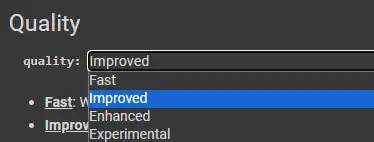 建议选择增强(Enhanced)。
选择神经网络的版本。
建议选择增强(Enhanced)。
选择神经网络的版本。
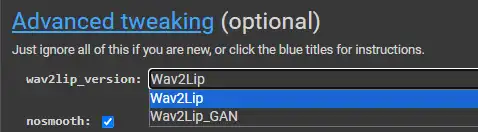 这个根据个人情况,建议对每个深度模型同时试两个版本,我推荐 Wav2Lip
它们之间的区别:
**Wav2Lip**
**优点:** 更精确的唇同步 + 在无声时会闭合嘴巴
**缺点:** 有时会导致缺少牙齿
**Wav2Lip\_GAN**
**优点:** 看起来更自然 + 保留说话者的原始表情
**缺点:** 唇同步不如前者精确 + 在无声时保持嘴巴与原始更相似。
开始生成深度换脸:
这个根据个人情况,建议对每个深度模型同时试两个版本,我推荐 Wav2Lip
它们之间的区别:
**Wav2Lip**
**优点:** 更精确的唇同步 + 在无声时会闭合嘴巴
**缺点:** 有时会导致缺少牙齿
**Wav2Lip\_GAN**
**优点:** 看起来更自然 + 保留说话者的原始表情
**缺点:** 唇同步不如前者精确 + 在无声时保持嘴巴与原始更相似。
开始生成深度换脸:
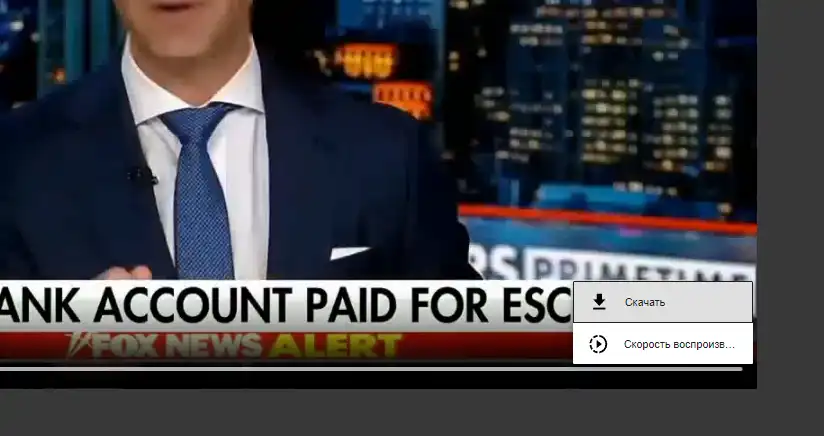
 得到结果后检查是否有任何伪影。如果一切满意,下载生成的结果。
 如果仍然存在伪影,特别是下巴问题,例如可见一条生成动作时的边框线,按我下面做的操作。转到这些滑块:
 将 D 滑块设为 5-10 并查看结果。此操作相当于在面部下方添加了额外像素,这些像素也会被神经网络生成,
> R - 右
> L - 左
> U - 上
> D - 下
你可以调整这些设置,如果人的头型奇怪也能起作用。质量主要取决于你选择的原始视频。应选择人物尽量直视镜头,且不要跳动或抖动的视频。
我得到的结果:
*
**就这些。祝你好运!**
将 D 滑块设为 5-10 并查看结果。此操作相当于在面部下方添加了额外像素,这些像素也会被神经网络生成,
> R - 右
> L - 左
> U - 上
> D - 下
你可以调整这些设置,如果人的头型奇怪也能起作用。质量主要取决于你选择的原始视频。应选择人物尽量直视镜头,且不要跳动或抖动的视频。
我得到的结果:
*
**就这些。祝你好运!**